Help
The editor can be used to create diagrams for cases from the ethics of distribution.
This is work in progress, please feel free to give any kind of feedback.
Quick start
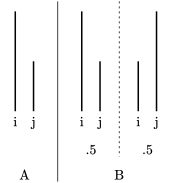
Here is an example of how to create a diagram for a version of the famous Mere Addition Paradox and to export it for use in an external program, e.g. a word processor program.
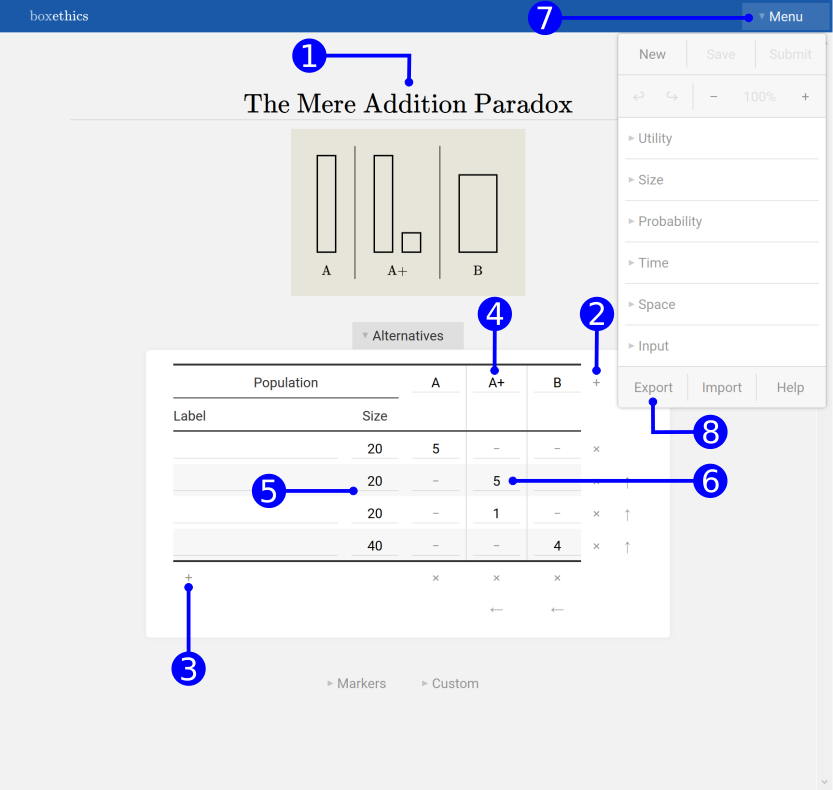
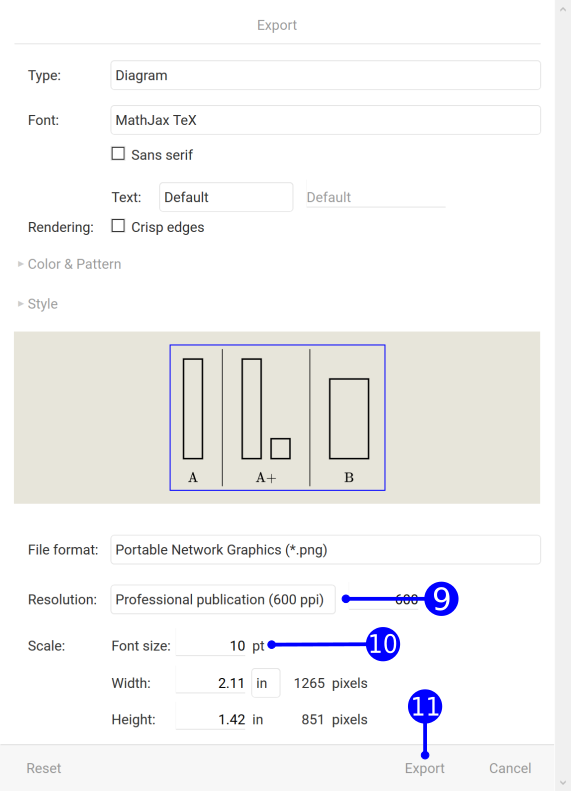
Open a new web browser tab with the diagram editor web page or just click here to do so. All steps in the editor are also illustrated in the two pictures below.
To create the diagram:
- Set the title to
The Mere Addition Paradox. - Add two more alternatives by clicking
+at the top right of the table. - Add three more populations by clicking
+at the bottom left of the table. - Enter labels for the three alternatives:
A,A+, andB. - Enter Sizes for the four populations:
20,20,20, and40. - Enter the utility numbers
5,5,1, and4.
To export the diagram:
- Click on Menu to open the menu.
- Click on Export to open the export dialog.
- Set the Resolution, for example to
Professional publication (600 ppi). - Set the Font-size used for labels on diagrams in your document, for example to
10 pt. - Click Export to download the picture to your computer.
Save the picture to your computer and insert it into your external document.
General background
The ethics of distribution is about the evaluation of alternatives with respect to their distributions of welfare (or opportunity to welfare).
Welfare is what is good for an individual. In the ethics of distribution, it is assumed that, at least in principle in some cases, the welfare levels or quality of life of different individuals can be compared (on a ratio scale and represented by a number, often called utility.
One field of application is public health where QALYs (quality adjusted life years) are measured. Another is the ethics of future generations that is riddled with a number of problems and paradoxes concerning the composition and size of future populations.
Cases, tables, and diagrams
A case consist of a number of alternatives with a utility distribution among populations of various sizes.
- Simple example.
- There are two alternatives, A and B, and two populations, p of size 20 and q of size 40. Suppose that in A the utility of everyone in p is 100 and the utility of everyone in q is 50, and in B the utility of everyone in p and q is 75.
The information of a case can be arranged in a table. This is how it is entered in the editor.
- Simple example.
-
Population A B Label Size p 20 100 75 q 40 50 75
The information of a case can be arranged in a box-diagram. The height of a box represents the relative utility. The width of a box represents the population size (in atemporal diagrams, see Time). The editor creates diagrams automatically from the information entered into the table.
- Simple example.
-
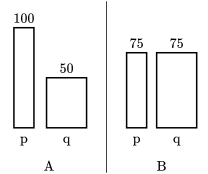
Click on the diagram to view it in the editor.
Text and math input
- Selection
-
Text input can be started by either selecting a field in the table or an element in the diagram.
- Multi line text
-
Multi line text can be set by using double backslash,
\\, or pressing pressing the return key,↵. For\(\text{first line}\)
\(\text{second line}\)enter
first line\\second line - Math
-
Math input is supported by \(\mathrm{\LaTeX}\) commands. Here is a short List of Mathematical Symbols.
Note: \(\mathrm{\LaTeX}\) has not to be installed to use these commands in the editor and the exported diagrams in other applications.
Math has to be entered in math mode. To enter math mode either bracket with
$-signs, like$x$. This can also be accomplished by selecting the text to be put in math mode and pressing$. Alternatively, math mode can be set as primary mode of input, in the Menu Input Math mode, see Settings. In math mode normal, text has to be bracketed in\text{}, like\text{some normal text}. Since$is used to enter math mode it has to be escaped as\$to be used as symbol.- Sub- and superscript
-
Sub- and superscript can be set in math mode using
_and^, respectively. For more than one character in sub- or superscript use the braces{and}. For \(\text{A$_{23}$}\) enterA$_{23}$In this way variables in the subscript will be set as math, for example \(\text{A$_{mn}$}\). For a more uniform rendering either set everything in math mode or set the subscript as in text mode. For example, for \(\text{$A_{mn}$}\) and \(\text{A\(_\text{mn}\)}\) enter, respectively,
                    $A_{mn}$

                    A$_\text{mn}$
Alternatively, bracketing text with
_{and}can be accomplished by selecting the text to be set in subscript and pressing_. - Special characters
-
Special characters can be set by using \(\mathrm{\LaTeX}\) math commands. For example for \(\alpha\) enter
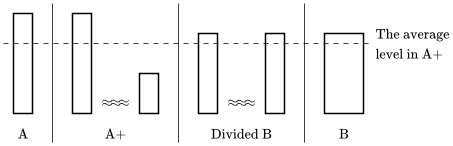
$\alpha$Note: Math can be used in various ways. For example, by combining two \(\approx\),
\approx, symbols and a negative space,\!, to$\approx\!\approx$one gets a wave like symbol \(\approx\!\approx\).
Alternatives
Alternatives are arranged in a table. It is also possible to select items in the table by selection in the diagram.
- Label
-
Enter the label of an alternative at the top row. Click
+at the top right to add an alternative. - Distributions
-
Click
×at the bottom under a distribution column to remove a distribution from an alternative. - Probability
-
To edit probabilities check 'Edit probabilities' in the Settings. Click
+next to a probability add a distribution with a probability to an alternative. - Population
-
Click
+at the bottom left to add a population. Click×at the left next to the population row to remove a population.- Population label
-
Enter the label of a population at the left column.
- Population size
-
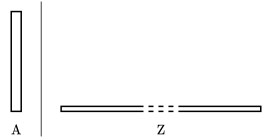
Enter the size of a population. Enter
>before the size of a population to make it appear larger.There are some abbreviations for sizes:
Kfor 103 = 1,000Mfor 106 = 1,000,000Bfor 109 = 1,000,000,000Tfor 1012 = 1,000,000,000,000
For example,
10Bfor 10,000,000,000.
- Utility
-
- Utility box
-
Enter a numeric utility to set the height of a utility box.
- Text
-
Enter a non-numeric term to make this term appear instead of a utility box.
Note: It is possible to move a label to the negative utility side by using
-[label. - Hide
-
Leave blank to make the population disappear in the distribution.
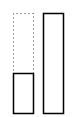
- Dotted utility box
-
Enter a slash,
/, followed a numeric utility to create a dotted utility box.2/5It is possible to create multiple dotted utility boxes by adding further utility numbers preceded by a slash.
- Custom utility label
-
Enter a numeric utility followed by a squared bracket open,
[, and a text to create a label for the utility.100[very\\high\\welfare

Markers
Add a marker to indicate a utility level. In alternatives where all populations never-exist no mark will be drawn. However you can force to draw a mark by adding a population and setting its utility to a space, .
See also Mark 0 utility.
Custom
Add custom elements to the diagram. The SVG markup of these elements are added in the text area.
For more details on SVG see the Wikipedia page Scalable Vector Graphics.
There are buttons for simple tools to draw directly onto the diagram:
- Path
- Line
- Rectangle
- Ellipse
- Text
If a tool is selected the draw mode is activated and indicated by a blue box around the diagram which marks the edges of the diagram. To exit draw mode click again on the currently selected tool button or press the Esc key. For every tool there are a number buttons to set
attributes, such as fill and stroke color, and text alignment.
The number of attributes and their values that can be set via buttons is very limited. But the SVG markup can be freely changed in the text area. A couple of examples are provided below.
Elements can be drawn with their center at the starting position by pressing the Control key while drawing. Elements can be drawn with equal height and width, e.g. square and circle, by pressing the Shift key while drawing.
- Path
-
Draws a curve from commands in
d.<path d="..." /> - Line
-
Draws a line from the coordinates
x1andy1tox2andy2.<line x1="100" y1="50" x2="40" y2="20" /> - Rectangle
-
Draws a rectangle from the coordinates
xandywith dimensionswidthandheight.<rect x="100" y="50" width="40" height="20" /> - Ellipse
-
Draws an ellipse from the center coordinates
cxandcywith radiusesrxandry.<ellipse cx="100" cy="50" rx="40" ry="20" /> - Text
-
Draws a text at the coordinates
xandy.<text x="100" y="50">Some text</text> - Group
-
Groups the embraced elements.
<g>...</g> - Attributes
-
class-
There are a couple of predefined classes that set the attriutes to the same as for automatically created elements in the diagram. For example,
class="marker"will set the stroke of an element as for the markers.boxstroke as for utility boxesbox2stroke as for secondary utility boxesmarkerstroke as for markermarker0stroke as for 0 utility marker
Note: Attributes set by a class are superseded by explicitly set attributes, for example those mentioned below.
fill-
Sets the fill color. Values can be predefined color names, like
fill="orange", and RGB triplets (red, green, blue), likefill="rgb(255,165,0)". stroke-
Sets the stroke color. For values see
fill. stroke-width-
Sets the stroke width, like
stroke-width=".75". stroke-dasharray-
Sets the stroke pattern of dashes and gaps, like
stroke-dasharray="5,5". text-anchor-
Sets the horizontal text alignment, like
text-anchor="middle". dominant-baseline-
Sets the vertical text alignment, like
dominant-baseline="central". transform-
Transforms the element, like
transform="scale(2) translate(20 -40)".
Settings
All settings are in the Menu at the top right.
Utility
-
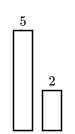
Label utility
-
Check to label the utility.
- Continous Markers
-
Check to mark utility continously.
See also Markers.
-
Mark 0 utility
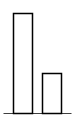
-
Check to mark 0 utility.
See also Markers.
-
0 utility edge
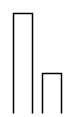
-
Uncheck to remove the 0 utility edge from boxes.
-
Fixed maximum/minimum
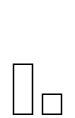
-
Enter a fixed maximum/minimum utility. Normally the scaling of boxes is automatically adjusted to the maximum and minimum utility. Setting a fixed maximum/minimum might be useful to produce a sequence of diagrams that have the same scaling.
-
Scale

-
Enter a utility scale.
Size
- Scale
-
Enter a scale for the population size.
Note: The scale is entered inverted, e.g. enter
.5for a scale of1:.5 = 2. Some abbreviations can be used, see Population size under Alternatives.
Probability
- Edit probabilities
-
Check to edit probabilities.
See also Alternatives.
Time
Diagrams can be set to represent the (width of) time (slices) by the width of boxes (instead of the population size).
- Timeslices
-
Enter the number of timeslices for temporal diagrams.
- Now
-
Enter the time of choice, ≥ 0.
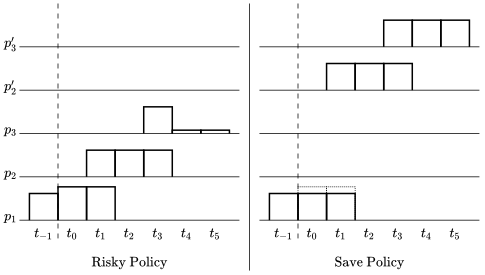
- Scale
-
Enter a time scale.
- Label time
-
Check to label the timeslices.
- Edit time labels
-
Check to edit the labels of timeslices.
Space
- Space between alternatives, histories, and populations
-
Enter the respective space.
- Separators
-
Check to show separators between alternatives and histories.
Input
- Math mode
-
Check to make math mode the primary mode of input. So no
$bracket is needed, see Text input.
Undo, and redo changes
Click on the undo and redo buttons, ↶ and ↷, in the Menu. In some browsers, you can also use the default keyboard shortcuts:
- Windows
-
- Undo
-
Ctrl+Z - Redo
-
Ctrl+YorShift+Ctrl+Z
- Mac
-
- Undo
-
cmd ⌘+Z - Redo
-
Shift+cmd ⌘+Z
Save and share
- Save
-
To save a diagram click Menu Save. In some browsers, you can also use the keyboard shortcut
Ctrl+S. - Fork
-
To save an already saved diagram under a new filename click Menu Fork. In some browsers, you can also use the keyboard shortcut
Ctrl+S.
This will generate a new filename and URL. Save the diagram by saving the URL, for example as a bookmark in your browser.
You can also easily share a diagram with others by sending the URL, for example via copy and paste into an email.
Note: If you ever have forgotten to bookmark a saved diagram you can recover it from your browsing history.
Export
Open the export dialog by clicking on Menu Export.
Diagram
- Font
-
Select the rendering font. Select LaTeX export to preserve markup, see \(\mathrm{\LaTeX}\).
- Sans serif
-


Check to render the font without serifs.
- Colors
-
- Stroke color
-
Choose the color of lines and labels.
- Fill color
-
Choose the color or pattern of box fillings. By checking Individually per population, an individual fill color can be chosen for each box.
- File format
-
- Raster graphics
-
- Portable Network Graphics (*.png) with support by almost all applications.
- Joint Photographic Experts Group (*.jpg) with support by almost all applications.
- Tagged Image File Format (*.tiff) with support by some applications.
- Vector graphics
-
- Scalable Vector Graphics (*.svg) with only limited support by some applications, see Use in other applications.
- Rendering
-
- Crisp edges
-
Check to render with aliasing. Note: This might not work in all browsers.
- Resolution
-
Applies only to raster graphics.
- PPI (pixels per inch)
-
Sets the number of pixels (or dots) per inch.
- Scale
-
- Font-size
-
Sets the dimensions to match the given font-size.
- Width
-
Sets the width of the exported raster graphic in and the unit of length in inch (in), centimeters (cm), pixels (px), or scale percentage (%).
- Height
-
Same as width but for height of the exported raster graphic.
Tip: To achieve that all your images are proportional:
- Use the same font-size or width (and height) percentage (and the same resolution for raster graphics).
Input
Vectors
Use in other applications
Almost all application have png- and jpg-file support. So you can work with these formats in any case. Below are some details on the more limited svg-file support.
Inkscape

svg-files can be edited and exported to different file formats by the open SVG graphics editor Inkscape.
- Download Inkscape
Note: The editor combines different elements into groups.
- To select a single element within a group press
Ctrland click on the element. - To open a group temporarily double click on the group.
- To ungroup a group permanently cick on the group to ungroup and, in the menu, on Object > Ungroup.
\(\mathrm{\LaTeX}\)

\(\mathrm{\LaTeX}\) offers support for vector graphics via Inkscape. There are several methods. With the one described below it is possible to include SVG images and have \(\mathrm{\LaTeX}\) typeset the text.
- Export a svg-file for LaTeX:
-
- Open the Menu Export dialog.
- In the Font list select LaTeX export.
- Click Export to export the svg-file.
- Convert a svg-file to a pdf-file in Inkscape:
-
- Open the exported svg-file in Inkscape.
- From the menu select File > Save as....
- In the File Type list select Portable Document Format (*.pdf).
- Check PDF+LaTeX: Omit text in PDF, and create LaTeX file.
- Insert a pdf-file in LaTeX
-
Make sure the preamble contains the following.
                        \usepackage{amsmath} % for enhanced math support

                        \usepackage{graphicx} % for inclusion of graphics

                        \usepackage{color} % for text color

                        \usepackage{grffile} % for larger range of filenames

                        \usepackage{calc} % for simple arithmetic
Add the figure into the document. For example:
                        \begin{figure}

                          \centering

                          \input{"image.pdf_tex"}

                        \end{figure}
Replace
imagewith the file name. - Putting graphics in separate folder
-
The default path for graphics is your document folder. If you want to set a different (sub) folder add the following to the preamble:
\graphicspath{{<path>}}Where you replace <path> by your graphics folder, e.g.
\graphicspath{{images/}} - Scaling the image in LaTeX
-
To control the size of the image without changing the text size add
\def\svgscale{<scale>}or
\def\svgwidth{<v-length>}to the figure. For example:
                        \begin{figure}

                          \centering

                          \def\svgscale{.5}

                          \input{image.pdf_tex}

                        \end{figure}
Beware that changing the size of the image without the text can lead to unwanted effects and that the definition is reset for each image.
To control the size of the image including the text size add
\scalebox{<h-scale>}[<v-scale>]{<content>}or
\resizebox{<h-length>}{<v-length>}{<content>}to the figure. For example:
                        \begin{figure}

                          \centering

                          \scalebox{.5}{\input{image.pdf_tex}}

\end{figure} - Further reading
-
- How to include an SVG image in LaTeX
- Packages in the ‘graphics’ bundle which is a subset of the graphicx bundle.
- An Improved Environment for Floats which provides option [H] for “put it HERE, period”.
LibreOffice

LibreOffice offers native support for svg-files.
- Insert a svg-file in LibreOffice:
-
- From the menu choose Insert > Image....
This might not always lead to the best results. An alternative is to export to eps-file in Inkscape, see below under Microsoft Word.
Tip: If math input is used in a diagram, e.g. for variables or formulas, then this might be typeset differently from the main text in your document, e.g. in italics. To best imitate this effect use the native Formula functionality to insert variables and formulas.
LyX

LyX offers native support for svg-files.
- Insert a svg-file in LyX:
-
- From the menu choose Insert > File > External Material....
- As Template chose Inkscape figure.
Tip: To have \(\mathrm{\LaTeX}\) typeset the text use the LaTeX export (see \(\mathrm{\LaTeX}\)).
Microsoft Office
Microsoft Office does not offer native support for svg-files. The simplest way is to use export as a raster grapic, like .png or .jpg, see Export.
Tip: If math input is used in a diagram, e.g. for variables or formulas, then this might be typeset differently from the main text in your document, e.g. in italics. To best imitate this effect use the native Equation functionality to insert variables and formulas.
Alternatively, it offers support for vector graphics via Inkscape.
- Convert svg-file to eps-file in Inkscape:
-
- Open the svg-file in Inkscape.
- From the menu select File > Save as....
- In the File Type list select Encapsulated Postscript (*.eps).
- Insert an eps-file in Word:
- Further reading
OpenOffice

OpenOffice offers native support for svg-files.
- Insert a svg-file in OpenOffice:
-
This might not always lead to the best results. An alternative is to export to eps-file in Inkscape, see above under Microsoft Word.
- Further reading
Disclaimer
THE SOFTWARE IS PROVIDED "AS IS", WITHOUT WARRANTY OF ANY KIND, EXPRESS OR IMPLIED, INCLUDING BUT NOT LIMITED TO THE WARRANTIES OF MERCHANTABILITY, FITNESS FOR A PARTICULAR PURPOSE AND NONINFRINGEMENT. IN NO EVENT SHALL THE AUTHORS OR COPYRIGHT HOLDERS BE LIABLE FOR ANY CLAIM, DAMAGES OR OTHER LIABILITY, WHETHER IN AN ACTION OF CONTRACT, TORT OR OTHERWISE, ARISING FROM, OUT OF OR IN CONNECTION WITH THE SOFTWARE OR THE USE OR OTHER DEALINGS IN THE SOFTWARE.